Watch on YouTube: Part 1 – How to Create an eBay Seller Account
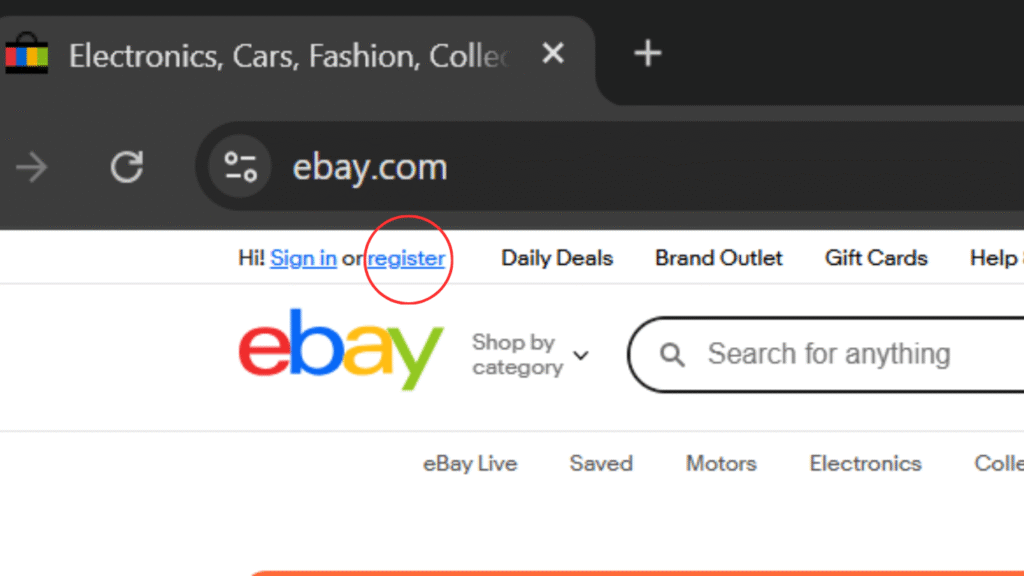
Step 1— Go to eBay.com and click “Register” in the top-left corner
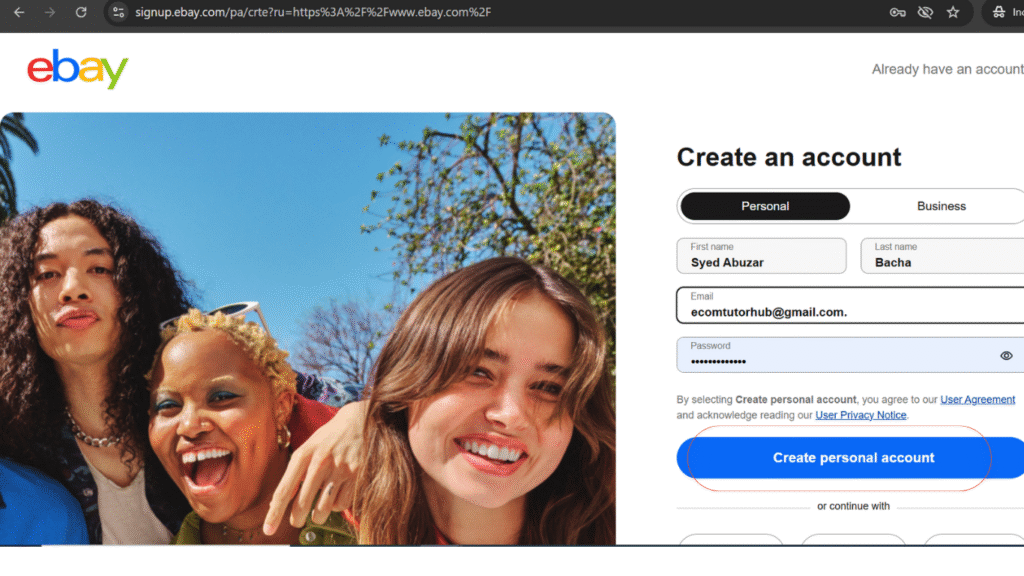
Step 2— Fill in Your Personal Information
Enter the following details in the registration form:
- First and Last Name— These should match your official photo ID, such as a passport, because eBay may ask for verification later.
- Email Address — Make sure this is an active email you can access, as eBay will use it for verification and all selling notifications.
- Create Password — You can use the same password as your email.
Once all fields are complete, click on Create Account as shown in the image.
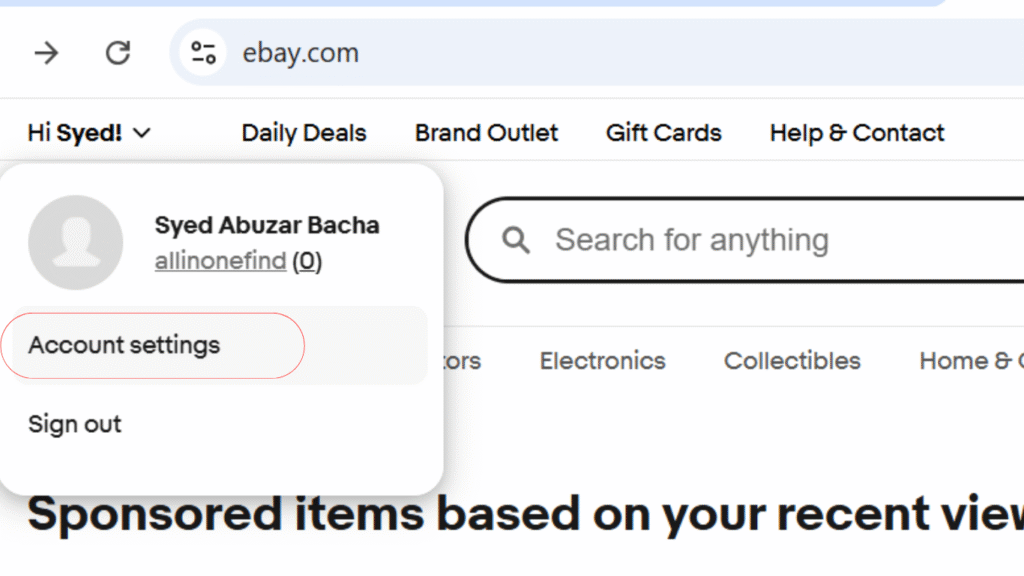
Step 3— Open Account settings and complete your contact information
- Click your name (e.g., Hi, Syed!) at the top → choose Account settings. (See Image Choose setting )
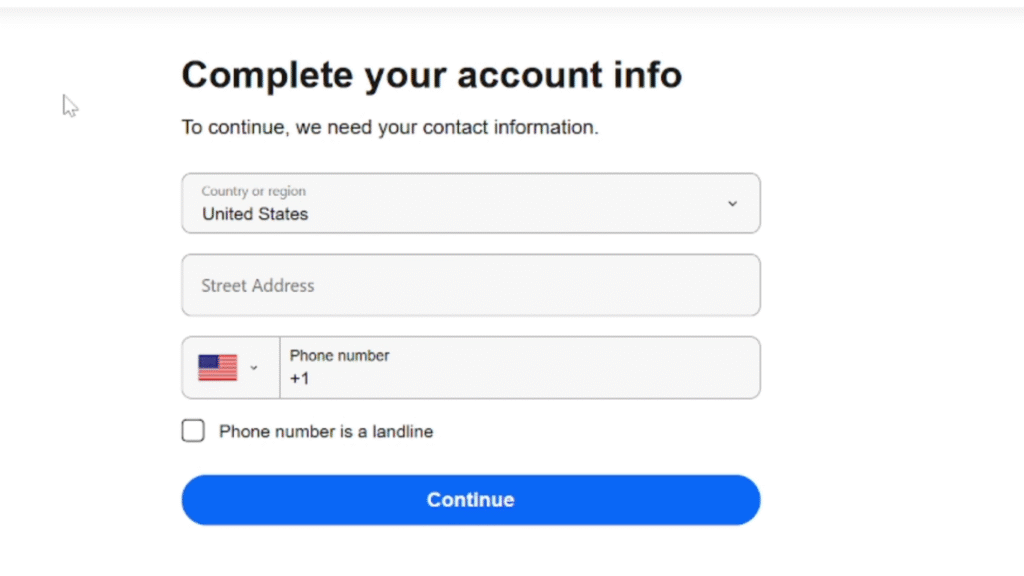
- On Complete your account info, enter: (See Account Info)
- Country/region
- Street address
- Phone number (check Phone number is a landline if applicable)
- Click Continue to save. You will then be directed to the Account Settings page, as shown in the image for Step 4.
Step 4— Verify your email and phone number
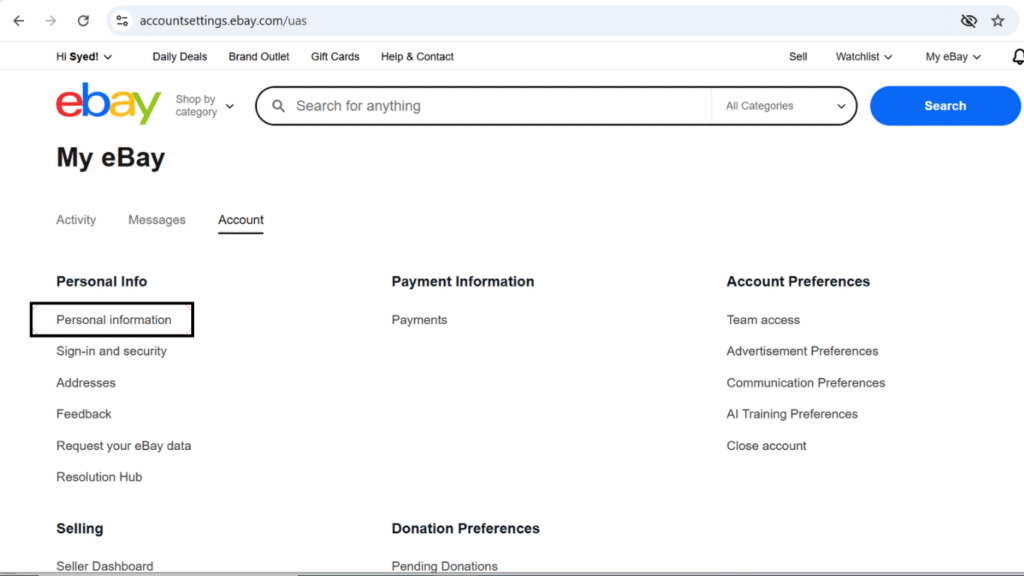
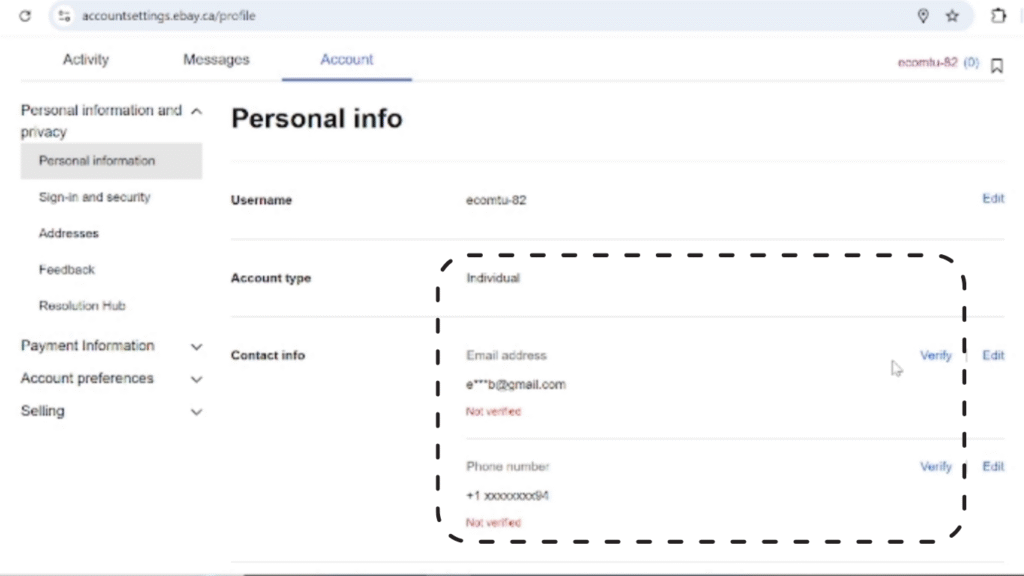
- Click on Personal Information, as shown in the left image. A new page will open, as shown in the right image.
- Verify you email
- Verify your phone number
Step 5— Add payment method
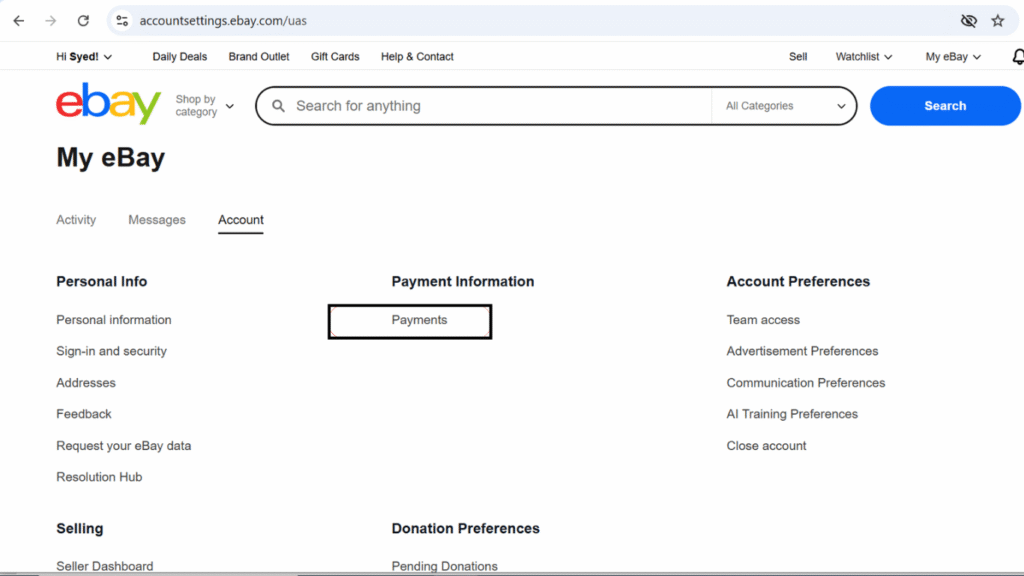
- In the Account Settings page, select Payments from the menu, as highlighted in the image.
- Then add your payment method, such as a credit card or debit card.
Step 6— Create a Listing to Complete Your Seller Account
Follow these steps:
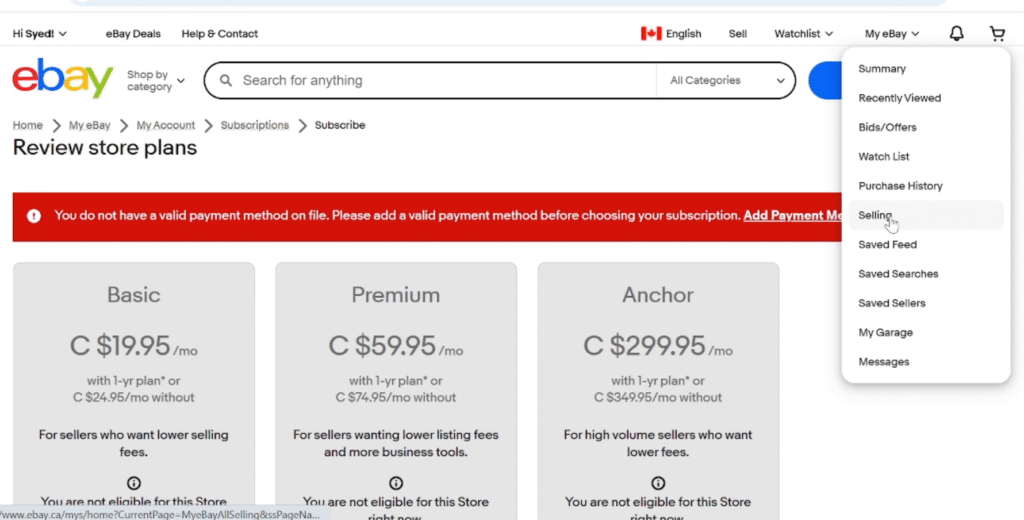
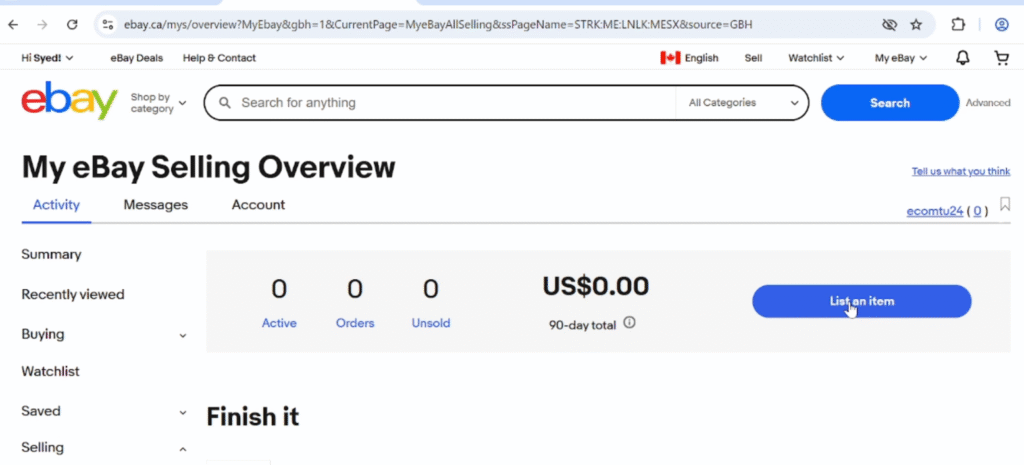
- Go to My eBay and select Selling, as shown in the top left image.
- Next, click List an item to start creating your first listing, as shown in the top right image.
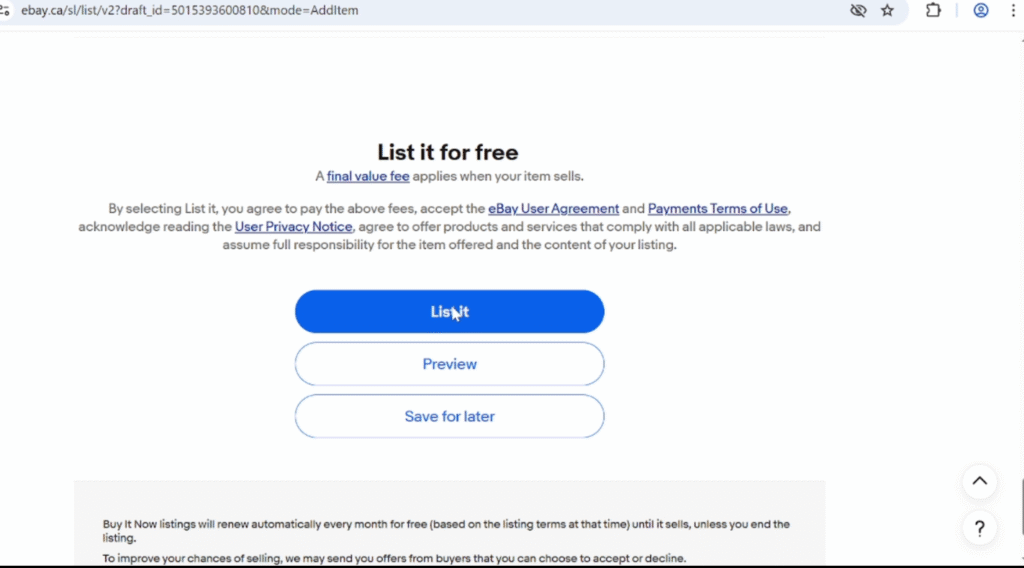
- Fill in all the required item details, and once complete, click List item at the bottom to publish your listing, as shown in the bottom left image.
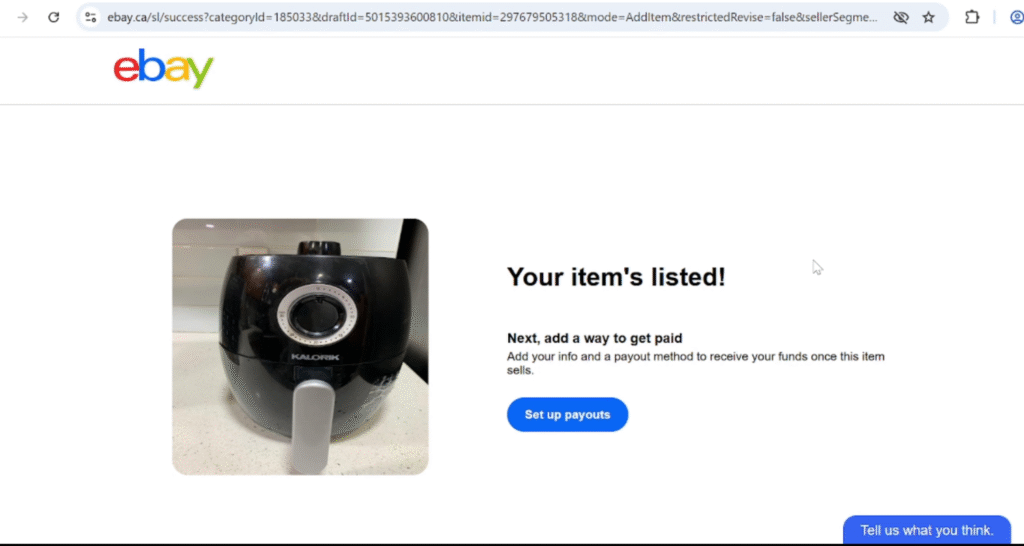
- Now your item is listed as shown in the bottom right image.
Step 7— Add your payout details
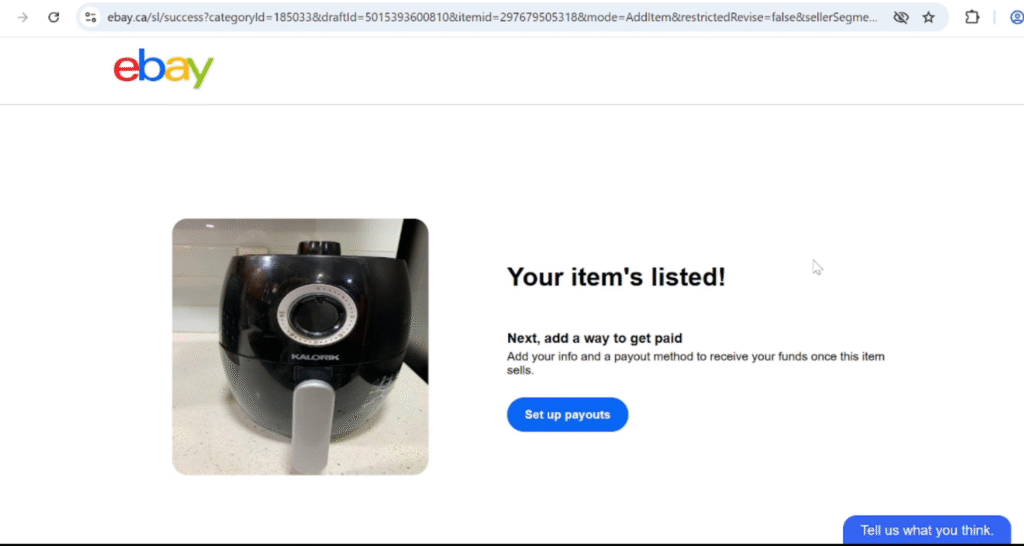
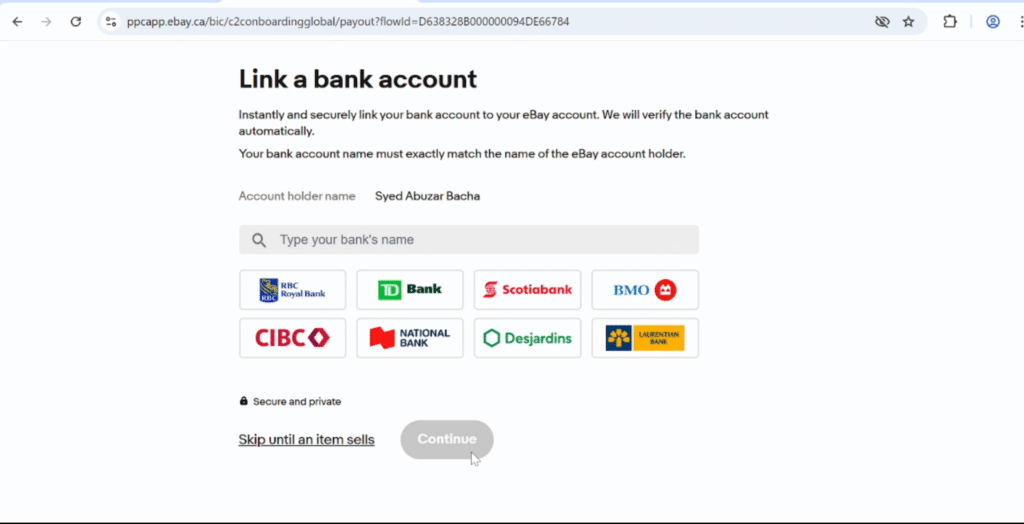
- Now click on Set up payment directly from the listed item, as shown in the left image. A new window will then appear, as shown in the right image.
- Add your payout details, then click Continue to proceed.
Now you’re all set for Step 8, which is subscribing to an eBay Store.
Step 8— Subscribing for an eBay Store
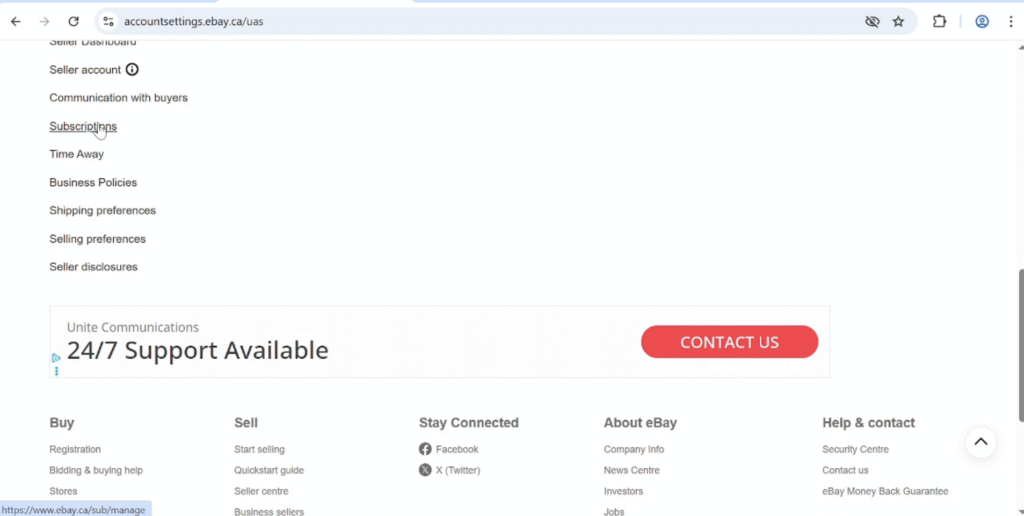
- From the Account Settings page, click on Subscriptions.
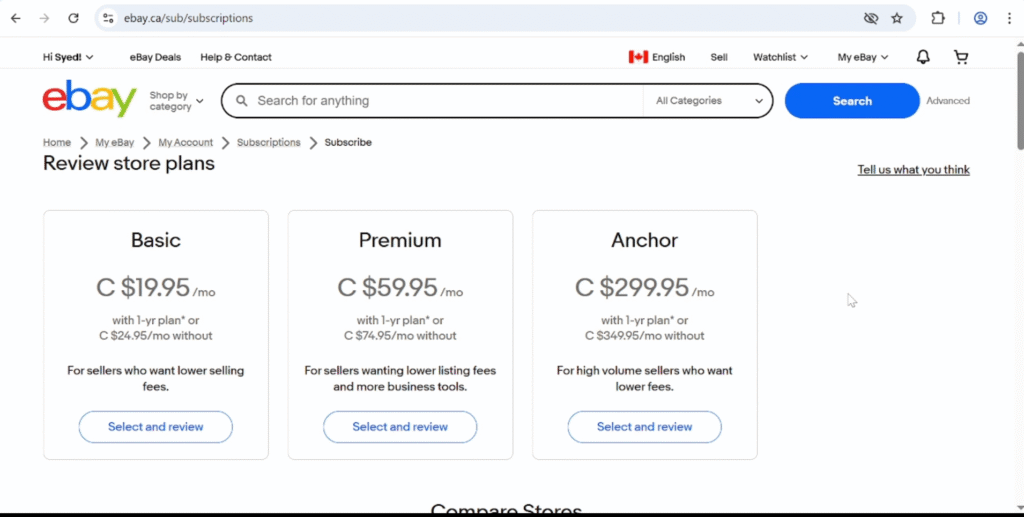
A new page will open — select Review Store Benefits to continue. - Then choose a plan that fits your needs. I recommend selecting the Basic plan.
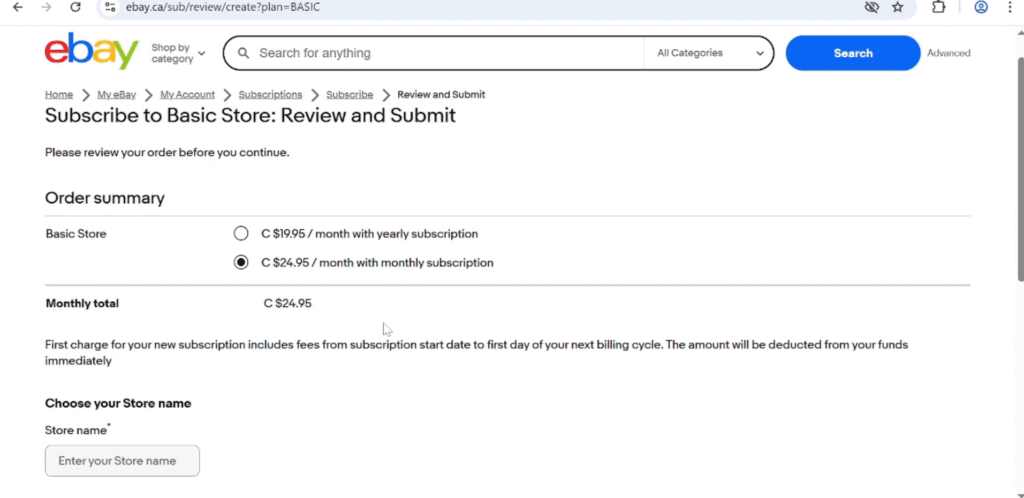
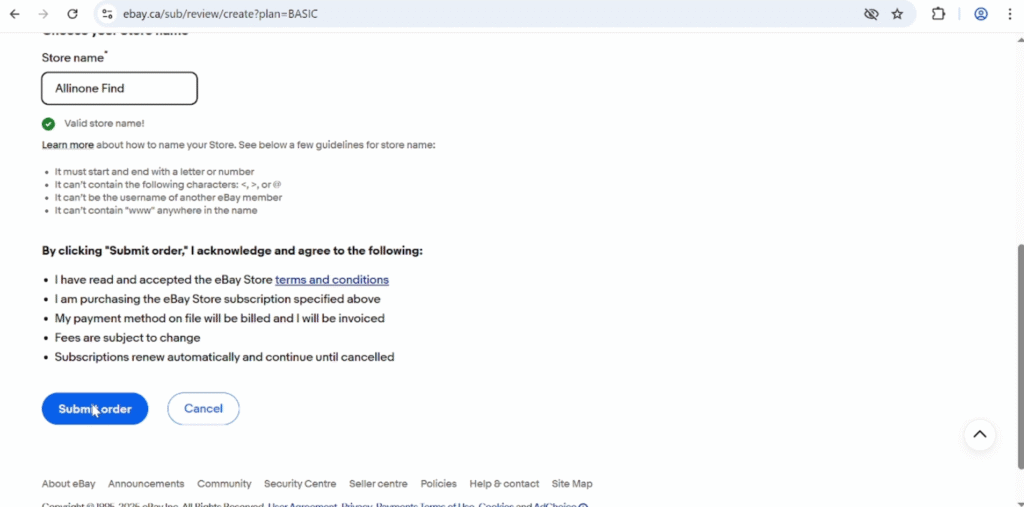
Click Select and Review to continue as shown in the top right image. - Then choose either a Monthly or Annual plan, and enter your Store Name, as shown in the bottom-left and bottom-right images.
- Finally, click Submit Order to complete your store subscription, as shown in the bottom-right image.
Congratulations! You’ve successfully set up your eBay seller account and subscribed to your store.